> ## Documentation Index
> Fetch the complete documentation index at: https://help.sendspark.com/llms.txt
> Use this file to discover all available pages before exploring further.
# Embed Google Calendar with Videos
> Learn how to embed a Google Calendar booking link with your Sendspark videos. Let prospects schedule meetings directly from your video landing page.
To embed a Google Calendar with your Sendspark video, first create an **Appointment schedule** in Google Calendar and copy its booking page URL. Then, under your Sendspark video, toggle Calendar to On, select **Google** from the provider dropdown, and paste the link. This only works for Google Workspace or Business accounts.
## Key takeaways
* This procedure only works for Google Workspace or Business accounts.
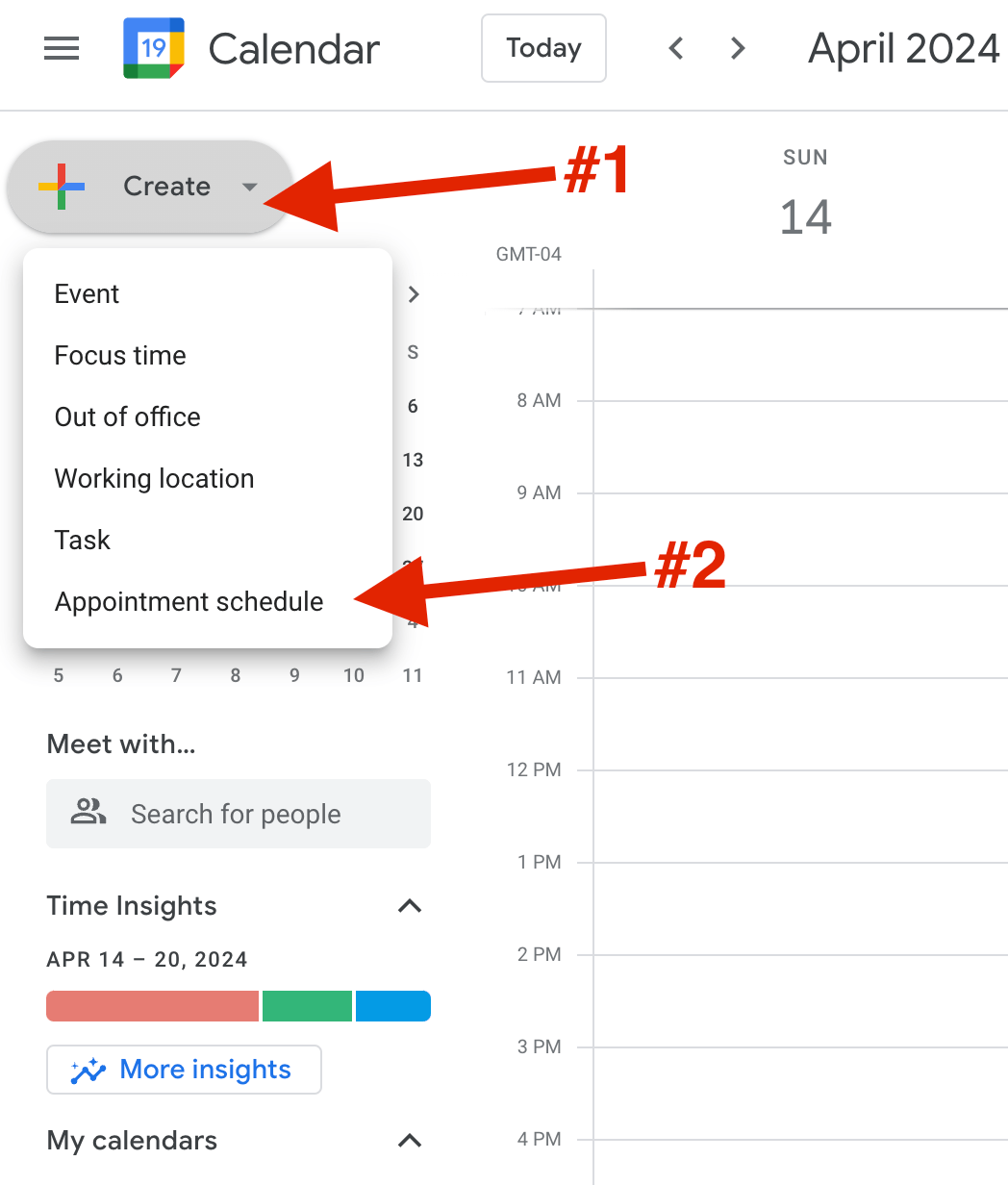
* In Google Calendar, click +Create, choose **Appointment schedule**, then open the booking page and copy its URL.
* In Sendspark, toggle Calendar to On, select **Google** as the provider, and paste in the booking link.
* Your embedded Google Calendar appears in the preview area, letting prospects book meetings right after watching your video.
### Embed your Google calendar next to your Sendspark videos to help prospects book meetings right after watching.
This procedure only works for Google Workspaces or Business accounts
## Steps to follow In Google:
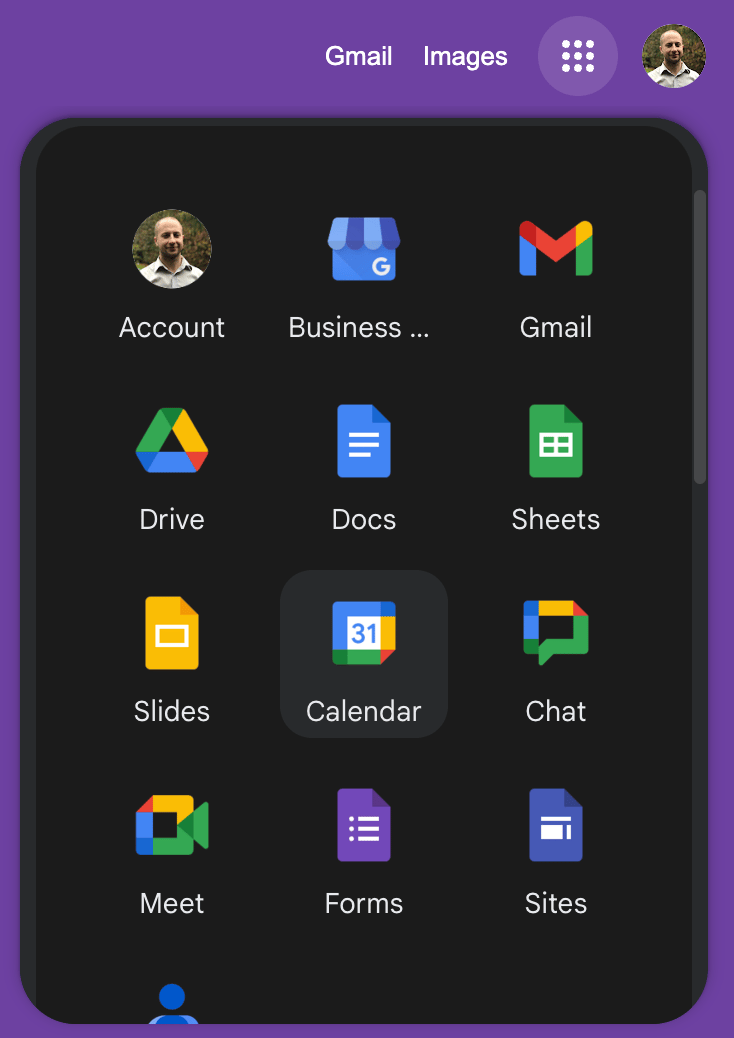
1. Head to your calendar app: [https://calendar.google.com/calendar/u/0/r](https://calendar.google.com/calendar/u/0/r)
 2. On the left-hand side corner, click on +Create and then on Appointment Schedule
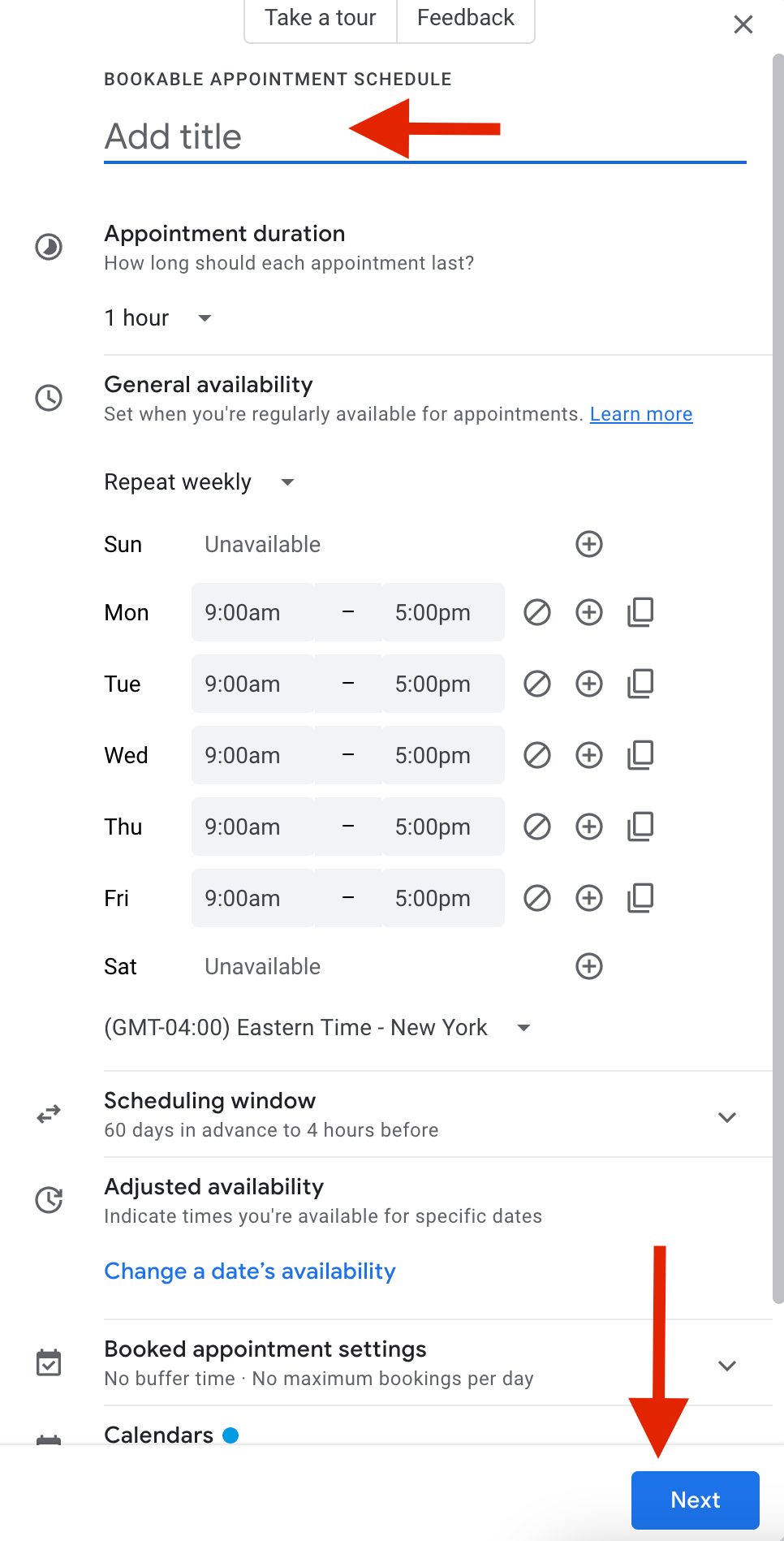
 3. Set your title and the **Scheduling window** and click on Next:
 4. Finish your desired settings and click **Save**:
 5. A pop-up window will come up. Click **Preview** to open the booking page:
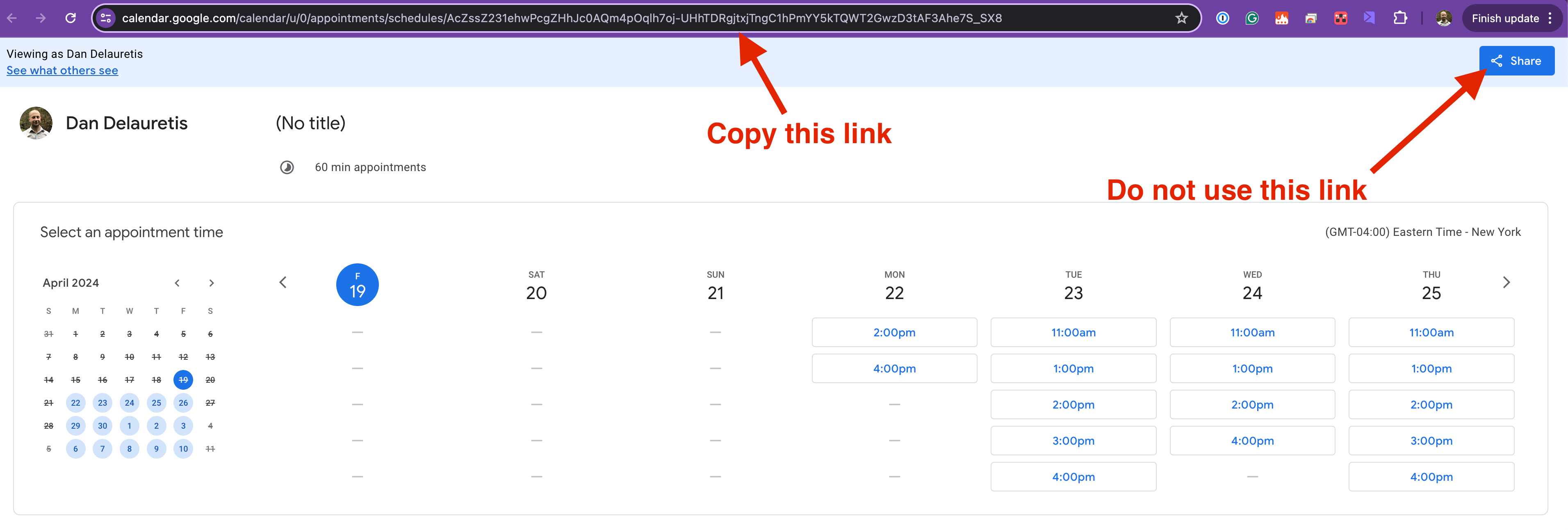
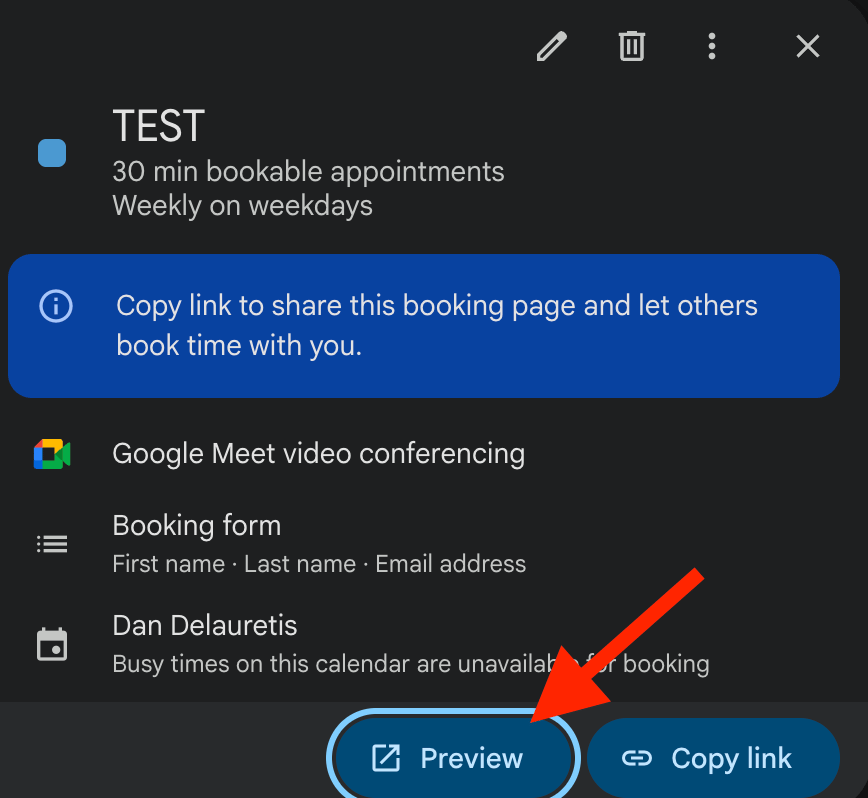 6. You should now be on a new page. Kindly copy its URL:
 ## Steps to follow In Sendspark:
1. Under your Sendspark video, toggle **"Calendar"** to **"On"**
2. Select **"Google Calendar"** from the Provider Dropdown List
\*\*3. Add the link under \*\*Link (URL)\*\*\*\*to the Google calendar you want to use
## Steps to follow In Sendspark:
1. Under your Sendspark video, toggle **"Calendar"** to **"On"**
2. Select **"Google Calendar"** from the Provider Dropdown List
\*\*3. Add the link under \*\*Link (URL)\*\*\*\*to the Google calendar you want to use
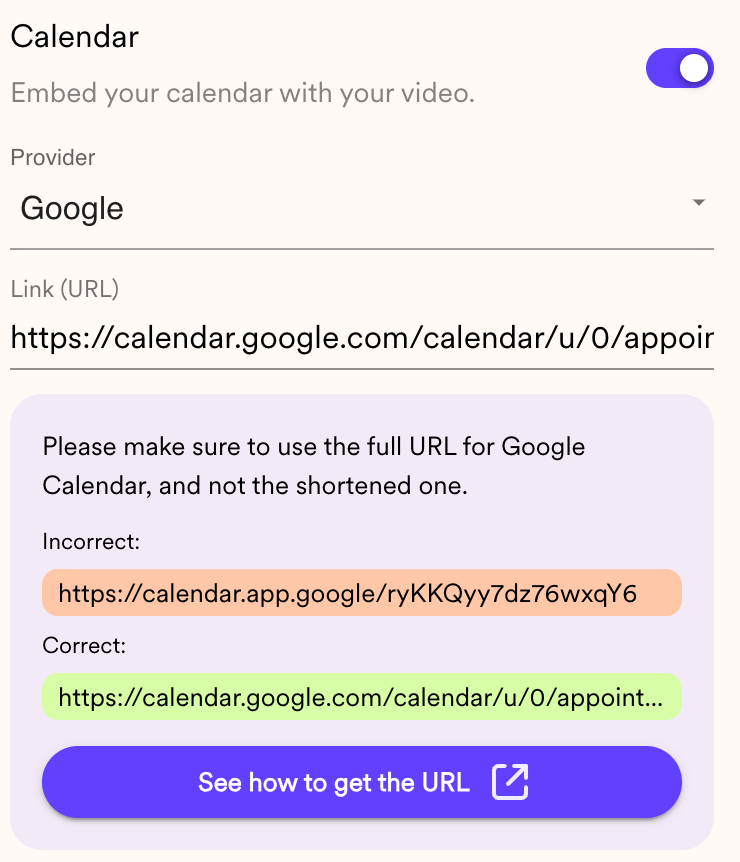 You should be able to see your embedded Google calendar in the preview area!
## Frequently asked questions
Yes. This procedure only works for Google Workspace or Business accounts.
In Google Calendar, click +Create and select Appointment Schedule, set your title and the **Scheduling window**, and save. Then click **Preview** and copy the URL from the browser address bar. Use the full `calendar.google.com/...` URL, not the shortened `calendar.app.google` link that the Share button produces.
Under your Sendspark video, toggle Calendar to On, select **Google** from the provider dropdown list, and add the link to the Google calendar you want to use.
Once you've added the link, you'll see your embedded Google calendar in the preview area, next to your video, so prospects can book meetings right after watching.
*Updated July 2026.*
This documentation is built and hosted on [Mintlify](https://mintlify.com), a developer documentation platform.
You should be able to see your embedded Google calendar in the preview area!
## Frequently asked questions
Yes. This procedure only works for Google Workspace or Business accounts.
In Google Calendar, click +Create and select Appointment Schedule, set your title and the **Scheduling window**, and save. Then click **Preview** and copy the URL from the browser address bar. Use the full `calendar.google.com/...` URL, not the shortened `calendar.app.google` link that the Share button produces.
Under your Sendspark video, toggle Calendar to On, select **Google** from the provider dropdown list, and add the link to the Google calendar you want to use.
Once you've added the link, you'll see your embedded Google calendar in the preview area, next to your video, so prospects can book meetings right after watching.
*Updated July 2026.*
This documentation is built and hosted on [Mintlify](https://mintlify.com), a developer documentation platform.