> ## Documentation Index
> Fetch the complete documentation index at: https://help.sendspark.com/llms.txt
> Use this file to discover all available pages before exploring further.
# How to Record System Audio in Sendspark
> Record your computer's system audio in Sendspark: the desktop app captures it automatically, and the Chrome Extension needs a Chrome Tab or Entire Screen recording with the audio toggle on.
How you capture your computer's system audio depends on where you record. The **desktop app records it automatically**, with nothing to switch on. In the **Chrome Extension**, system audio is off by default, so to catch internal sounds like a YouTube video, webinar, or music you pick the **Chrome Tab** or **Entire Screen** pane in Chrome's share window and turn its audio toggle on.
## Key takeaways
* The **desktop app records system audio automatically**. There's no toggle to find. On Mac, grant it screen recording permission first.
* In the **Chrome Extension**, pick the **Chrome Tab** pane and turn **Also share tab audio** on, or the **Entire Screen** pane and turn **Also share system audio** on.
* By default the Chrome Extension captures microphone audio (and speaker audio your mic picks up from the room), but not the system audio stream.
* This route works only in Google Chrome. You can enable microphone plus computer audio together to capture your voice and the system sound at once.
* For the pane-by-pane detail and screenshots, see [record screen and computer audio](/record-screen-and-computer-audio).
## Which method to use
Recording in the desktop app? Stop here, it already captures system audio. The steps below are only needed in the Chrome Extension, where system audio is off by default.
In the Chrome Extension, recordings capture:
* **Microphone audio** (your voice).
* **Speaker audio** (if your mic picks it up from the room).
That does **not** include the actual **system audio stream** from your computer, so you need to ask for it explicitly with the audio toggle in Chrome's share window.
## How to record system audio in the Chrome Extension
1. [Click here to install the Chrome Extension](https://chromewebstore.google.com/detail/sendspark-video-and-scree/blimjkpadkhcpmkeboeknjcmiaogbkph)
2. Open the Chrome tab that has the audio you want to record (e.g. YouTube, webinar, music).
3. Click the **Sendspark Chrome Extension** icon.
4. Select **Screen Only** or **Cam + Screen**, then hit **RECORD**.
5. In Chrome's share window, select the **Chrome Tab** pane and pick your tab.
6. Turn the **Also share tab audio** toggle on at the bottom of the window.
7. Click **Share**. Sendspark captures both the video of the tab and its audio.
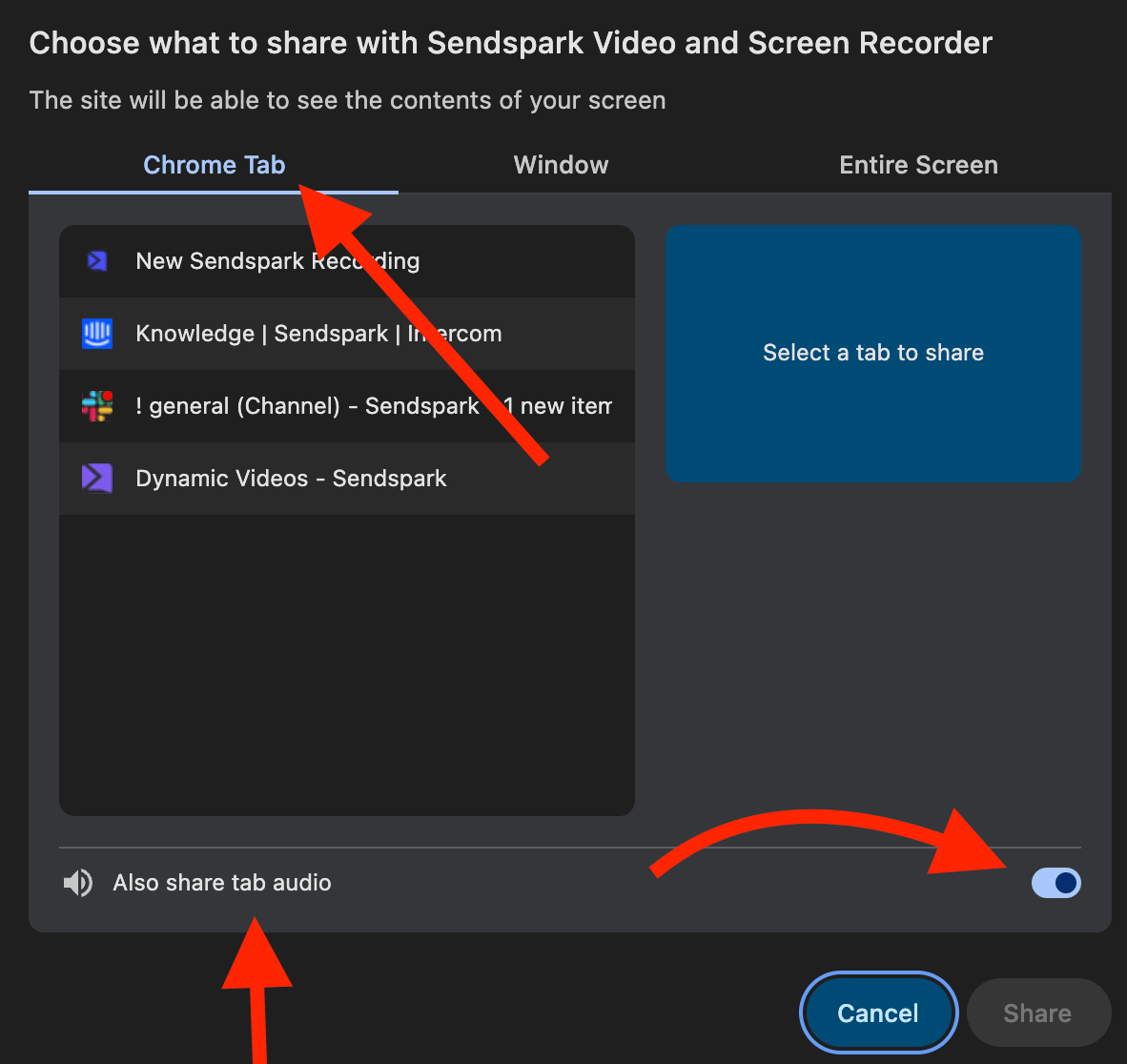 To capture everything your computer plays rather than one tab's audio, select the **Entire Screen** pane instead and turn **Also share system audio** on. This is also the option to use if the recording needs to follow you between tabs and applications.
## Notes and limitations
* This route works only in **Google Chrome**.
* The **Window** pane has no audio toggle. Use Chrome Tab or Entire Screen.
* The **desktop app** needs none of this, because it records system audio automatically. On Mac, grant it screen recording permission first.
* You can also enable both **microphone and computer audio** if you want to record your voice *and* the system sound together.
## Frequently asked questions
Yes, and it does so automatically, so there's nothing to enable per recording. On Mac, grant the app screen recording permission first. The share-window steps on this page apply to the Chrome Extension, where system audio is off by default. See [record screen and computer audio](/record-screen-and-computer-audio).
In the Chrome Extension, open the tab with the audio, click the Sendspark Chrome Extension, select **Screen Only** or **Cam + Screen**, then in Chrome's share window pick the Chrome Tab pane and turn "Also share tab audio" on. Sendspark then captures both the tab's video and its audio. In the desktop app, just record as usual.
They're the same toggle under two names, and which one you see depends on the pane. The Chrome Tab pane shows "Also share tab audio" and captures sound from the one tab you selected. The Entire Screen pane shows "Also share system audio" and captures everything your computer plays.
Yes. You can enable both your microphone and the computer audio toggle so your voice and the system sound are recorded at the same time.
This method needs Google Chrome with the Sendspark Chrome Extension. If you'd rather not be tied to Chrome, the [desktop app](/how-to-use-the-sendspark-desktop-application) records system audio automatically.
*Updated August 2026.*
This documentation is built and hosted on [Mintlify](https://mintlify.com), a developer documentation platform.
To capture everything your computer plays rather than one tab's audio, select the **Entire Screen** pane instead and turn **Also share system audio** on. This is also the option to use if the recording needs to follow you between tabs and applications.
## Notes and limitations
* This route works only in **Google Chrome**.
* The **Window** pane has no audio toggle. Use Chrome Tab or Entire Screen.
* The **desktop app** needs none of this, because it records system audio automatically. On Mac, grant it screen recording permission first.
* You can also enable both **microphone and computer audio** if you want to record your voice *and* the system sound together.
## Frequently asked questions
Yes, and it does so automatically, so there's nothing to enable per recording. On Mac, grant the app screen recording permission first. The share-window steps on this page apply to the Chrome Extension, where system audio is off by default. See [record screen and computer audio](/record-screen-and-computer-audio).
In the Chrome Extension, open the tab with the audio, click the Sendspark Chrome Extension, select **Screen Only** or **Cam + Screen**, then in Chrome's share window pick the Chrome Tab pane and turn "Also share tab audio" on. Sendspark then captures both the tab's video and its audio. In the desktop app, just record as usual.
They're the same toggle under two names, and which one you see depends on the pane. The Chrome Tab pane shows "Also share tab audio" and captures sound from the one tab you selected. The Entire Screen pane shows "Also share system audio" and captures everything your computer plays.
Yes. You can enable both your microphone and the computer audio toggle so your voice and the system sound are recorded at the same time.
This method needs Google Chrome with the Sendspark Chrome Extension. If you'd rather not be tied to Chrome, the [desktop app](/how-to-use-the-sendspark-desktop-application) records system audio automatically.
*Updated August 2026.*
This documentation is built and hosted on [Mintlify](https://mintlify.com), a developer documentation platform.